In light of recent news about Truecrypt being no longer developed, I compiled a list of other encryption programs that are compatible with it.
If you have data that was archived with Truecrypt for long term storage, you should be able to decrypt it with any of the following programs.
tcplay: Fully featured Truecrypt implementation to open and create Truecrypt compatible hidden containers with cascade ciphers and keyfiles. This is a command line utility that works in Linux and DragonflyBSD, you can add a front end graphical interface with zulucrypt or Luksus.
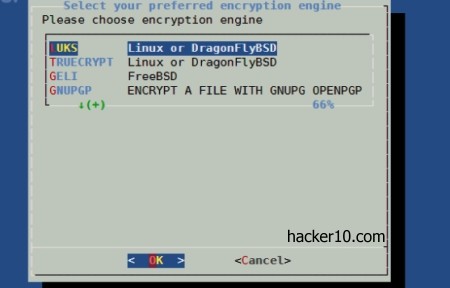
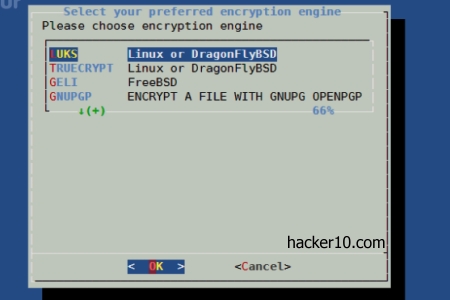
Luksus: A terminal program for Linux and BSD that lets you encrypt and decrypt data using Geli, LUKS, GnuPG or Truecrypt. A wrapper around tcplay, Geli and cryptsetup, with a front end graphical interface for those who find the command line too difficult.
Luksus encryption front end
RealCrypt: An open source forked version of Truecrypt for Fedora Linux, it comes as a RPM package and it can be easily installed in Fedora using the repositories. It has a graphical interface and the same capabilities that Truecrypt has, with a different name and logo as requested by Truecrypt licensing terms. There are no significant code differences in between them.
Encrypted Data Storage (EDS): Android app that can create and open any Truecrypt container but there is no on the fly mode and data will be decrypted to a temporary file, this could be a security risk if you believe that your smartphone can be stolen as temporary data written to solid state disks is recoverable with forensic tools.
EDS Android Truecrypt
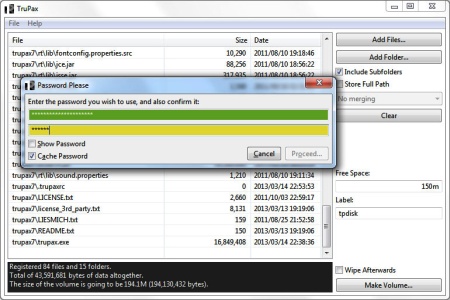
TruPax: A Java based program that can open and create Truecrypt compatible encrypted containers. I will work on any operating system that has Java installed, Windows, Mac OS, BSD and Linux. It can be used with a graphical interface or in command line mode to automate tasks.The software is open source, portable and it was coded independently from Truecrypt.
Truecrypt compatible software TruPax
Cryptonite: Open source app that brings EncFS and Truecrypt to your Android phone, the program is still in development and intended for advanced users. Cryptonite can decrypt any Truecrypt container using your smartphone. If you want to run Android in your desktop, there is an open source project that has ported it to PCs and can be installed as if it was a Linux distribution. This will give you a bigger screen when decrypting data.
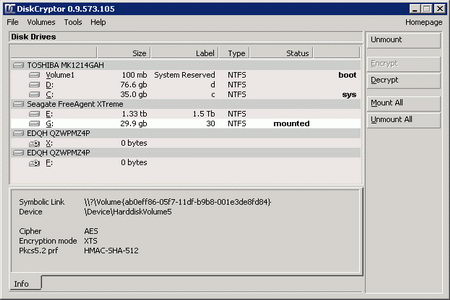
DiskCryptor download is a tiny 750Kb, after installing it you will need to reboot the computer, you might notice that its 64bit drivers come signed by the ReactOS foundation a non for profit organization assisting open source projects not able to acquire an expensive signing certificate to distribute Windows 64bit drivers.
Encrypting my Windows 7 Home Premium 64bit OS, with a fairly powerful Intel i5 2200Hz (quad core) absorbed very low CPU, a steady 7% of the available resources, it took me 20 hours to encrypt a 1TB hard drive, it would have been considerably quicker using just the AES algorithm instead of the cascade algorithm I selected.
DiskCryptor lets you know how long it will take to encrypt your operating system, you can still work with your computer while it is being encrypted, I advice you to temporarily disable power management in Windows and set it to always on, Windows will not notice the hard disk being encrypted and send the OS into hibernation mode believing the computer is inactive, if this happens full disk encryption will stop and only resume once you switch the computer back on, I have found this problem to occur with both DiskCryptor and Truecrypt, more of a Windows problem than to do with the full disk encryption software.
Diskcryptor lets you benchmark the encryption ciphers (Tools>Benchmark) if you have a low spec CPU and are in a hurry you can choose the cipher that performs best in your system, AES was the quickest for me, by quite a lot of difference in contrast with Twofish and Serpent, once the OS has been encrypted it doesn’t matter what cipher you used to encrypt it, performance will be the same. You can benchmark ciphers in Truecrypt too but since only AES can be used for full disk encryption there is no point in doing it.
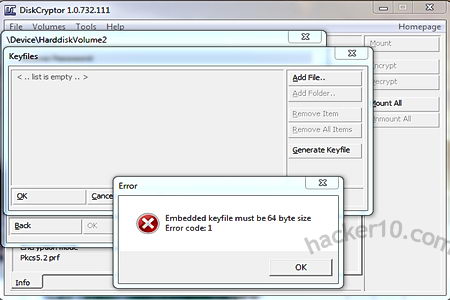
DiskCryptor encryption keyfile
Truecrypt will ask you to enter your password after rebooting your computer before encrypting your operating system, DiskCryptor will not, it assumes you entered the passphrase correctly twice as asked and did not make any mistake. When using special signs in your password be aware that in booting up your computer the keyboard has a US layout that will not correspond with a non US keyboard, I searched for a photograph of US keyboard layout on the Internet to make sure there would be no mistakes about what keys to pres.
Unlike Truecrypt, DiskCryptor bootloader is highly configurable, I have my own (Ascii) logo at logon and I instructed DiskCryptor to time out after 30 seconds of inactivity at which point the computer reboots, other options like halt and exit to BIOS are possible. Using DiskCryptor keyfile for full disk encryption is something possible and not supported by Truecrypt, a keyfile will thwart dictionary attacks on your passphrase but this keyfile can not consist of anything it has to be a 64 byte file generated by DiskCryptor.
Windows 7 FDE specific problem
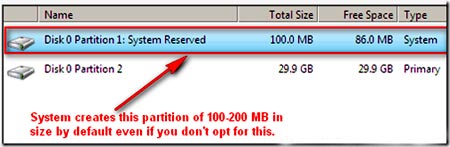
Unlike Vista, XP and lower Windows versions, when you use a whole disk encryption product on Windows 7, or installing a dual boot, you will notice that Windows 7 automatically creates a 100MB system reserved partition, 24MB contains actual data the rest is there for future use like Bitlocker or system restore, this partition is hidden by Windows and only visible using a live CD or through DiskCryptor or Truecrypt interface.
Windows 7 100MB hidden system partition
Windows 7 system reserved partition contains some necessary boot files, do not attempt to encrypt Windows 7 system reserved partition like I did because the computer will not boot! There are hacks around to merge that partition with the main Windows 7 operating system, I managed to do it partioning the hard disk with PartedMagic before installing Windows 7 and ignoring Windows installation DVD asking me to create the system reserved partition, everything worked fine until I fully encrypted Windows 7 without the system reserved space and the computer refused to boot.
If you would like to use whole disk encryption in Windows 7 there is no choice but to give in and allow Windows to create the unencrypted 100MB system partition, this shouldn’t be a problem regarding data leakage, you can view the files it contains with a live CD, I managed to see a bootsect.bak file, bootmgr, and System Volume Information folder and a few others with no obvious danger.
Truecrypt vs DiskCryptor comparison table
TRUECRYPT
DISKCRYPTOR
Open source license
Truecrypt own license
Standard Linux GPL license
Forces you to burn a recovery CD
YES
NO (optional)
Works with RAID volumes
YES
YES
Hidden operating system
YES
NO (pseudo)
Cross platform (Windows, Linux and MAC)
YES
NO
Option of cipher for full disk encryption
AES,Twofish,Serpent & cascades
AES,Twofish,Serpent & cascades
Supports keyfiles for full disk encryption
NO
YES
Can place bootloader on external device
NO
YES
Can create single encrypted containers
YES
NO
Portable mode
YES (admin rights)
NO
Encryption of external devices (USB,etc)
YES
YES
Plausible deniability
DiskCryptor does not support the hidden operating system feature that Truecrypt has but allows you to install the bootloader on an external device, ie. USB thumbdrive or CD-Rom, that is where the files giving away that the operating system has been encrypted and what software has been used for that are stored, if anyone seized your hard drive it would be possible to claim that it has been wiped clean as no identifiable information can be extracted from the HDD other than random data and there is no boot loader.
Plausible deniability appears more sound than Truecrypt hidden operating system, if you give away the password for the non hidden OS in Truecrypt, the timestamps and las activities could give away that the computer has not been used for a long time.
DiskCryptor full disk encryption
A computer with no operating system and a wiped hard disk will look very suspicious, claims that it was wiped the day before would be held with incredulity but hard to prove it didn’t happen. Even better, I came across a thread in DiskCryptor forums to have a dual OS system where one of the Windows OS will only boot with the USB thumbdrive plugged in and when not present the other OS will boot, this set up makes one of the partitions look like random data and not like 2 operating systems on one hard disk.
Conclusion Truecrypt vs Diskcryptor
If you have a tablet or netbook without a CD-drive go for DiskCryptor because Truecrypt forces you to burn a recovery CD (there is a work around using CD-drive virtualization software, i.e. Alcohol 120% or using the command line /noisocheck).
If you would like to be able to open encrypted external devices using Linux or MAC go for Truecrypt as DiskCryptor is a Windows only program, if you want to create single encrypted containers go for Truecrypt as DiskCryptor can’t do that.
Something in which Truecrypt beats DiskCryptor is in documentation, Truecrypt manual is very complete and DiskCryptor consists of an incomplete online Wiki, DiskCryptor can make up for this showing off the ‘Blue Screen’ feature, a way to quickly crash your fully encrypted computer allowing you to set the quick emergency shutdown to any hotkey shortcut you like.
Security wise, both Truecrypt and DiskCryptor have the same credentials with their source code open to scrutiny and none of them reviewed by any qualified cryptographer, overall, DiskCryptor has more configuration features than Truecrypt, and Truecrypt is better at cross platform compatibility.
If you encrypt your whole hard drive including your operating system you will not have to worry about wiping data, clearing the Internet browser cache, deleting temporary files and encrypting individual files, all you will have to worry about is choosing a strong passphrase that can not be broken using a brute force attack (trying dictionary words).
The only way to access a fully encrypted operating system is by getting access to the computer while it is switched on (decrytped), you will save lots of time if you decide to encrypt your full operating system, it is not difficult and there is free software for that. Windows Vista and 7 come with BitLocker Drive Encryption for full disk encryption but only the more expensive business high end editions do and it has been designed for businesses with few home user features.
Full disk encryption software without backdoor
Truecrypt (Free): It’s wizard driven menu will guide you through the whole encryption process, there are many algorithm choices, if you do not understand what they mean leave all of the default choices on, they are secure enough for everyone. Truecrypt can encrypt external devices, create virtual encrypted drives and create a hidden encrypted operating system, to be used if you are forced to give up the password.
You will find it easy to find support for Truecrypt at computer security forums and Usenet groups as it is one of the most used full disk encryption programs.
Truecrypt encryption algorithm
DiskCryptor (Free): Open source encryption software, it can encrypt partitions that have already data on them, it supports AES, Twofish and Serpent encryption algorithms, allows you to encrypt USB flash drives and external hard disks with automatic mounting, support for key files, option to place the boot loader on an external device.
DiskCryptor full disk encryption
Symantec Encryption Dekstop: (Over $200): Suite of encryption applications to fully encrypt your operating system, external drive, USB thumbdrive, email and AIM Instant Messenger using PGP encryption. Software includes a data shredder. This product appears targeted at businesses, optionally it can deployed in multiple workstations using a central server.
Symantec Encryption Desktop PGP
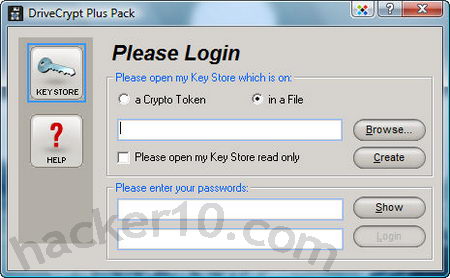
DriveCrypt Plus Pack: (Over $100): Whole operating system encryption with AES256-bit, no backdoor, it can hide an undetectable operating system in the hard drive free space, this is useful if someone forces you give up your password, they would not be able to prove a second operating system exists, it can be used in conjunction with USB tokens for preboot authentication, login preboot screen can be changed, you can create your own.
DriveCrypt Plus Pack encryption
SecureDoc WinMagic (Over $100): Encryption of laptops, USB devices and desktop computers using AES 256 bit, certified FIPS 140-2 Level 2, it supports multifactor authentication at preboot level, no backdoor but password recovery is possible if you set it up, available in various languages, extended audit logging make SecureDoc a good option for businesses.
SecureDoc WinMagic full disk encryption
Full disk encryption performance
I have been using full disk encryption for over 5 years, I have used DiskCryptor, Truecrypt and DriveCrypt Plus Pack, in all cases there has been no computer slowdown while I was using full disk encryption, even using it on a low performance netbook with an Intel Atom CPU showed no noticeable performance issue.
If you are a home user you do not need to worry about full disk encryption slowing down your computer activities, the software normally needs very low resources to run on.
You could use Truecrypt traveller mode to encrypt your data on a USB stick but in order to use Truecrypt on a computer you will need administration rights and this is not possible in public computers like Internet cafe and libraries. Rohos Mini Drive USB encryptrion doesn’t require administrative privileges to open your password protected USB thumbdrive partition on a guest PC.
Rohos Mini Drive uses on the fly encryption making sure no data is left unencrypted on the guest PC after you have finished viewing it, there is a secure virtual keyboard included to stop key-loggers capturing your password and data is encrypted using AES256 a well known secure algorithm approved by the US Department of Defense to encrypt secret information.
There is a feature called ‘Hide and Encrypt Folder’ that allows to encrypt profile folders of applications like Skype, Google Chrome and Firefox as well as regular PC folders. This feature locks applications data with a password and ciphers the content strong encryption, when your encrypted USB drive is not plugged in to PC the applications will be unable to start.
Rohos Mini Drive encrypted USB thumbdrive
This encryption software needs less than 1MB for stand alone installation and creates an encrypted .rdi file where to store your data, it includes Rohos Disk Browser to view and manage your encrypted files, this is very useful as it will help you to avoid using the guest computer Windows explorer and stop you from leaving temporary files behind.
The free version of Roho Mini Drive has a 2GB encrypted partition size limitation, you will need administration rights to preinstall Rohos Mini Drive on the USB flash drive first and after that this secure encrypted USB thumbdrive can be used anywhere without any admin privileges.
The company behind Rohos Mini Drive claims that there is no backdoor whatsoever, if you lose your password, that is it, that also means that nobody can force the company to decrypt data held in your USB thumb drive because they have no way of doing it.
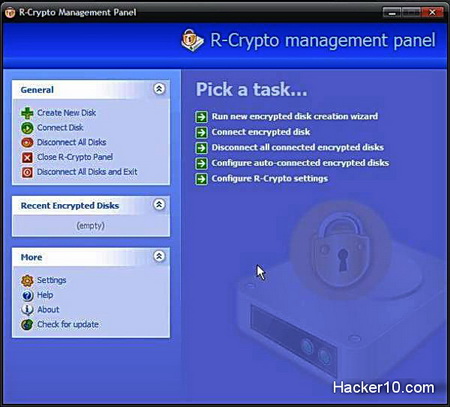
R-Crypto Data Security and disk encryption software will help you hide all of your internet pornography, financial details and other sensitive data from prying eyes. This free encryption software will create an encrypted virtual disk only visible after you enter the appropiate password, inside that encrypted disk you will be able to store anything you like and after closing it, the encrypted data will remain unaccessible for anyone without the right password.
R-Crypto encrypts data using the cryptographic infrastructure of the Microsoft operating system, this can include Microsoft AES crypto provider with key lengths of 128, 192 and 256 bits, for the password it will use the well known uncrackable Secure Hash Algorithm SHA-512. It can also use the Data Encryption Standard DES, or 3DES but it is highly reccomended to stick to AES as DES is not a safe encryption algorithm anymore.
R-Crypto constitutes a robust and safe encryption program with no backdoors, best of all R-Crypto is completely free of charge. If you want to hide your internet pornography from your wife and others, R-Crypto will be very useful and it is easy to use for beginners.
With R-Crypto you will have access to your encrypted disk control with an easy to use wizard that will guide you through the creation of the encrypted disk and it will also allow to change the size of the encrypted disk easily and it has many more features like being able to wipe the encrypted hard disk to make sure this is irrecoverable.
R-Crypto Data Security
Because R-Crypto uses Microsoft cryptographic infrastructure, it is ideal for companies that require certification for such products to meet certain governmental or corporate standards, as well as individual users with high security and privacy needs.