Tag Archives | AES encryption software

Lacie Private-Public AES256 encryption based on Truecrypt

Truecrypt alternative

Lacie Private-Public is a multilingual free encryption program for Windows and Mac computers based on Truecrypt, it comes with Truecrypt license included. What makes it different from Truecrypt is its simplicity of use, while Truecrypt will give you many encryption algorithms and options this tool sticks to the standard AES256 encryption and does not give the user any kind of option, you can create an encrypted virtual drive with just three clicks without reading the manual, which is available online. Encrypted containers are saved with the .lc extension and automatically named “La-Private” inside a folder bearing the same name, the software does not need installation you can carry it with you on a USB thumbdrive, however, administrator rights are still needed.

Encrypted containers larger than 4GB can not be created in FAT32 drives, to achieve this you will have to reformat to NTFS (Windows) or HFS+ (Mac). Anyone familiar with virtual drive encryption software will instantly know how to use this program, after creating an encrypted container you will see a new drive letter appear next to your C: hard drive, anything you store in there will be automatically encrypted.

Lacie Private-Public AES256 encryption

Lacie Private-Public AES256 encryption

To lock the container right click on Lacie’s logo in Windows toolbar and select dismount, to access the data again execute the program and enter the password. The only possible settings are password change, mount encrypted volume as read-only and timed self-dismounting, Lacie Private-Public appears to be directed towards the 100% newbie person that knows nothing about encryption products and is not interested in learning about them or customization options.

The company claims that there is no backdoor, if you forget your password that is it. Full disk encryption has been eliminated, to use this capability you will have to look for something else, the only advantage Lacie Private-Public seems to have over Truecrypt is that it is extremely simple to use and it should not frighten off computer ignorant people.

Note: This software can not run if you have Truecrypt installed, they both use the same drivers.

Visit Lacie Private-Public encryption tool

0 Comments

Create an encrypted virtual drive with CloudFogger

 Easily share encrypted files

CloudFogger is all in one encryption solution to encrypt and share your documents, it uses AES256 and public key RSA to secure the data,it can be used to encrypt your cloud storage documents before uploading them. During installation you will get a Windows warning saying that the driver publisher signature could not verified, it is ok to carry on installing the software as long as you downloaded it from the official website. You will need to reboot your computer and CloudFogger will prompt you to create an account for which you will have to facilitate an email address that needs to be verified using a code, the process shouldn’t take more than a couple of minutes.

After your CloudFogger account has been created you will notice a new letter on your computer hard drive (:X), anything you store there will be automatically encrypted and only accessible while your are logged into your CloudFogger account, it works like the encrypted virtual drives created by Truecrypt, what CloudFogger adds is easy sharing allowing you to add email addresses of people who can access the file, and single file encryption using the extension .cfog.

CloudFogger virtual drive encryption

CloudFogger virtual drive encryption

Any single file you encrypt is automatically stored in the virtual drive, when you double click on a .cfog file it will not decrypt, you will have to right click for that,  everything works integrated with Windows right click mode, there is no interface. CloudFogger claims it doesn’t create temporary files hence being more secure than encrypting using other applications, but if you view a file using an external application (e.g. Windows Media Player) a temporary back up file could be created and there is nothing CloudFogger can do about it.

CloudFogger has some time saving advantages over traditional on-the-fly encryption,right click integration and not needing to enter a password to encrypt the file while you are logged into your account, it can also securely wipe files which is something that normally requires separate software, and it makes it easy to share encrypted files the same way like SpiderOak does, but I did not find this encryption tool very intuitive to use, it think that you will have to read the manual to understand how everything works, it shouldn’t take long thought, and a first steps guide is included. This software does not support any kind of anonymity, everything works through email addresses  (sender&receiver) which are obviously traceable.

Note: Windows version is still in beta, there are plans to make an Android, iOS and Mac version.

Visit CloudFogger homepage

0 Comments

Review file encryption program ProtectOrion Data Safe

Secure AES encryption software

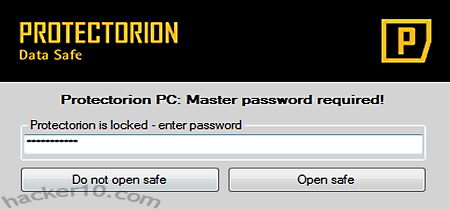
ProtectOrion Data Safe is an user friendly file encryption software made by an Austrian company, after installing it you will be prompted to create a masterpassword, a password strength meter will let you know how secure your password is, the user is forced to enter a password made up of a combination of letters and numbers or special characters, otherwise it will be rejected for being too weak.

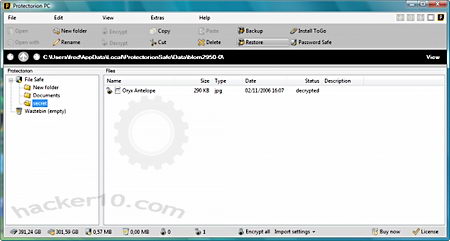
ProtectOrion main window is very informative, a toolbar above lets you know the full file path where data is being stored in Windows, and below you are shown the remaining free hard disk space and encrypted database size. Through the interface you can create folders where to classify your encrypted data (files and folders), just like you would do working on your operating system but with the data encrypted, a wastebin securely keeps any files you erase in case you change your mind.

ProtectOrion file encryption software

ProtectOrion file encryption software

A Windows widget, called SafePad, holds over your desktop at all times if you choose so, it can be used to drag and drop files or full folders for automatic encryption with the AES256 cipher (used by many government agencies and banks), after dragging a file you can choose in what encrypted folder you would like to place it, ProtectOrion options allow you to specify if the original file should be securely wiped after encryption or only copied, leaving the original file intact, the software can be set to autolock after a preset time or manually locked if you need to go away from your computer, the encrypted database can easily be backed up anywhere you like and restored.

Another feature is a password manager where you can create groups of passwords, usernames and URLs, all nicely put together, you can paste passwords to the clipboard with a single click, for security, the passwords are automatically erased from the clipboard after 15 seconds. There is a portable version of this software that can be installed on a USB thumbdrive with ProtectOrion ToGo (7MB), encrypted passwords can be synchronized in between the desktop and USB thumbdrive.

Most of the software functions are intuitive but a complete well structured PDF manual is included anyway, my main concern with this software is the existence of temporary files when you open them, a common Windows problem is that the operating system can create automatic unencrypted backups of photos or documents you are viewing in hard to find places.

Freeware encryption ProtectOrion

Freeware encryption ProtectOrion

Protectorion Data Safe claims to securely wipe files after adding them to the encrypted database but besides the fact that it stops data recovery software, they do not mention anywhere what method and how many wipes they use.

I think this could a good program for people who want something very easy to use with no learning curve, an eye candy interface and have very low security needs, if your opponent is someone well funded stay away from this encryption software, I saw decrypted temporary files created on the hard disk while the safe was open, once you close the encrypted safe the temporary files vanish, but I don’t know if they are securely wiped or not, there is no information about this anywhere.

Other encryption programs (Safetica, DiskCryptor, etc) create encrypted virtual drives where to store the data, that appears to me a far more secure solution than encrypting and decrypting every single file when you view them, even if they were wiped, the data leakage risk is still higher, the more files need to be wiped, the easier it is something can go wrong (ie computer crash leaving files decrypted before they have been erased).

ProtectOrion is the living example of why just because certain encryption software is using an unbreakable cipher like AES256 does not mean it is secure, how encryption is implemented needs to be considered too.

Note: The free version of this software is limited to 100 files and 5 passwords, a popup window invites you to upgrade your version when you open the software.

Visit Protectorion Data Safe homepage

0 Comments

DiskCryptor vs Truecrypt comparison

Full disk encryption review

DiskCryptor download is a tiny 750Kb, after installing it you will need to reboot the computer, you might notice that its 64bit drivers come signed by the ReactOS foundation a non for profit organization assisting open source projects not able to acquire an expensive signing certificate to distribute Windows 64bit drivers.

Encrypting my Windows 7 Home Premium 64bit OS, with a fairly powerful Intel i5 2200Hz (quad core) absorbed very low CPU, a steady 7% of the available resources, it took me 20 hours to encrypt a 1TB hard drive, it would have been considerably quicker using just the AES algorithm instead of the cascade algorithm I selected.

DiskCryptor lets you know how long it will take to encrypt your operating system, you can still work with your computer while it is being encrypted, I advice you to temporarily disable power management in Windows and set it to always on, Windows will not notice the hard disk being encrypted and send the OS into hibernation mode believing the computer is inactive, if this happens full disk encryption will stop and only resume once you switch the computer back on, I have found this problem to occur with both DiskCryptor and Truecrypt, more of a Windows problem than to do with the full disk encryption software.

Diskcryptor lets you benchmark the encryption ciphers (Tools>Benchmark) if you have a low spec CPU and are in a hurry you can choose the cipher that performs best in your system,  AES was the quickest for me, by quite a lot of difference in contrast with Twofish and Serpent, once the OS has been encrypted it doesn’t matter what cipher you used to encrypt it, performance will be the same. You can benchmark ciphers in Truecrypt too but since only AES can be used for full disk encryption there is no point in doing it.

DiskCryptor encryption keyfile

DiskCryptor encryption keyfile

Truecrypt will ask you to enter your password after rebooting your computer before encrypting your operating system, DiskCryptor will not, it assumes you entered the passphrase correctly twice as asked and did not make any mistake. When using special signs in your password be aware that in booting up your computer the keyboard has a US layout that will not correspond with a non US keyboard, I searched for a photograph of US keyboard layout on the Internet to make sure there would be no mistakes about what keys to pres.

Unlike Truecrypt, DiskCryptor bootloader is highly configurable, I have my own (Ascii) logo at logon and I instructed DiskCryptor to time out after 30 seconds of inactivity at which point the computer reboots, other options like halt and exit to BIOS are possible. Using DiskCryptor keyfile for full disk encryption is something possible and not supported by Truecrypt, a keyfile will thwart dictionary attacks on your passphrase but this keyfile can not consist of anything it has to be a 64 byte file generated by DiskCryptor.

 Windows 7 FDE specific problem

Unlike Vista, XP and lower Windows versions, when you use a whole disk encryption product on Windows 7, or installing a dual boot, you will notice that Windows 7 automatically creates a 100MB system reserved partition, 24MB contains actual data the rest is there for future use like Bitlocker or system restore, this partition is hidden by Windows and only visible using a live CD or through DiskCryptor or Truecrypt interface.

Windows 7 100MB hidden system partition

Windows 7 100MB hidden system partition

Windows 7 system reserved partition contains some necessary boot files, do not attempt to encrypt Windows 7 system reserved partition like I did because the computer will not boot! There are hacks around to merge that partition with the main Windows 7 operating system, I managed to do it partioning the hard disk with PartedMagic before installing Windows 7 and ignoring Windows installation DVD asking me to create the system reserved partition, everything worked fine until I fully encrypted Windows 7 without the system reserved space and the computer refused to boot.

If you would like to use whole disk encryption in Windows 7 there is no choice but to give in and allow Windows to create the unencrypted 100MB system partition, this shouldn’t be a problem regarding data leakage, you can view the files it contains with a live CD, I managed to see a bootsect.bak file, bootmgr, and System Volume Information folder and a few others with no obvious danger.

Truecrypt vs DiskCryptor comparison table

TRUECRYPT DISKCRYPTOR
Open source license Truecrypt own license Standard Linux GPL license
Forces you to burn a recovery CD YES NO (optional)
Works with RAID volumes YES YES
Hidden operating system YES NO (pseudo)
Cross platform (Windows, Linux and MAC) YES NO
Option of cipher for full disk encryption AES,Twofish,Serpent & cascades AES,Twofish,Serpent & cascades
Supports keyfiles for full disk encryption NO YES
Can place bootloader on external device NO YES
Can create single encrypted containers YES NO
Portable mode YES (admin rights) NO
Encryption of external devices (USB,etc) YES YES


Plausible deniability

DiskCryptor does not support the hidden operating system feature that Truecrypt has but allows you to install the bootloader on an external device, ie. USB thumbdrive or CD-Rom, that is where the files giving away that the operating system has been encrypted and what software has been used for that are stored, if anyone seized your hard drive it would be possible to claim that it has been wiped clean as no identifiable information can be extracted from the HDD other than random data and there is no boot loader.

Plausible deniability appears more sound than Truecrypt hidden operating system, if you give away the password for the non hidden OS in Truecrypt, the timestamps and las activities could give away that the computer has not been used for a long time.

DiskCryptor full disk encryption

DiskCryptor full disk encryption

A computer with no operating system and a wiped hard disk will look very suspicious, claims that it was wiped the day before would be held with incredulity but hard to prove it didn’t happen. Even better, I came across a thread in DiskCryptor forums to have a dual OS system where one of the Windows OS will only boot with the USB thumbdrive plugged in and when not present the other OS will boot, this set up makes one of the partitions look like random data and not like 2 operating systems on one hard disk.

Conclusion Truecrypt vs Diskcryptor

If you have a tablet or netbook without a CD-drive go for DiskCryptor because Truecrypt forces you to burn a recovery CD (there is a work around using CD-drive virtualization software, i.e. Alcohol 120% or using the command line /noisocheck).

If you would like to be able to open encrypted external devices using Linux or MAC go for Truecrypt as DiskCryptor is a Windows only program, if you want to create single encrypted containers go for Truecrypt as DiskCryptor can’t do that.

Something in which Truecrypt beats DiskCryptor is in documentation, Truecrypt manual is very complete and DiskCryptor consists of an incomplete online Wiki, DiskCryptor can make up for this showing off the ‘Blue Screen’ feature, a way to quickly crash your fully encrypted computer allowing you to set the quick emergency shutdown to any hotkey shortcut you like.

Security wise, both Truecrypt and DiskCryptor have the same credentials with their source code open to scrutiny and none of them reviewed by any qualified cryptographer, overall, DiskCryptor has more configuration features than Truecrypt, and Truecrypt is better at cross platform compatibility.

Truecrypt: http://www.truecrypt.org

DiskCryptor: http://diskcryptor.net/wiki/Main_Page/en

13 Comments

Encrypt and compress files with Secure Archive

File compression alternative to WinZip and WinRar

Secure Archive is a file encryption, data compression and file wiping utility suitable for individuals and businesses alike, it is simple and easy to use with right click integration and drag and drop, unlike other compression programs with encryption, like WinZip or WinRar, Secure Archive allows for high customization of encryption, you can choose to secure your files with Advanced Encryption System (AES), aka Rijndael, Blowfish, a patent free encryption algorithm, or NASCLL which appeared to be a proprietary encryption cipher of which the help file did not included any information at all, you will be better off using one of first two ciphers as they are tried and tested.

This free file encryption program options allow you to choose by how much data should be compressed (none, low,high), I failed to see its usefulness as I would imagine everyone wants it set at a high compression, the default setting, but no harm in including that. When you encrypt a file Secure Archive will let you know the password key strength in bits as you type together with a message saying if it is an acceptable password or not, in advanced options you can select what metadata should be saved together with the encrypted file, for example, time stamps, file attributes, CRC file integrity, you can choose to wipe the original file after encryption too.

Secure Archive encryption file utility

Secure Archive encryption file utility

The only shortcomings I found in Secure Archive is that the help manual failed to mention anything about their NASCLL encryption method, the secure wipe window could not be resized and it did not have a progress bar, it puzzled me that the developers claim that file wiping is being implemented using the standard US Department of Defense 5220. 22-M method which consists of a three wipe pass, but Secure Archive data wiping window indicates a single secure delete pass by default, my wild guess here is that it could mean a 1 time US DoD 5220.22-M data wiping pass but I can’t really be sure.

Secure Archive encrypted file properties

Secure Archive encrypted file properties

Secure Archive can be a good alternative to AxCrypt, useful for anyone in need of a free program to secure single files before emailing them, the .SAef file extension will confuse the other end, you both will have to be using the same software unless you create an encrypted self-extracting file which Secure Archive can do, data compression appeared to perform well, it managed to reduce my the seize of my WordPerfect document by 70%, I compressed the same file using WinZip .zip method and it compressed it by 71%, pretty much the same result.

If you are afraid that someone can guess your password using a brute force attack, Secure Archive lets you create what they call a HardKey, called keyfile in other software like Truecrypt, you can secure your compressed file with a password and a HardKey needing both to open it, something you know and something you have, but this HardKey can not be anything you like, it needs to have been created with the Secure Archive and anyone coming across it will know what it is for but it can enhance your security when emailing confidential documents if these happen to get intercepted or end up in the wrong inbox.

Visit Secure Archive homepage

0 Comments

Encrypt text files using the AES cipher with Scrambled Egg

Text encryption software freeware

This open source cross platform program will encrypt text messages using a wide range of algorithms to choose from, AES, Blowfish, ARC2, CAST, 3DES or RSA using your own public encryption key, text compression with Zlib or Bz2 can be performed before encryption.

Scramble-Egg has a portable version to take it with you in a USB thumbdrive, needing 20MB of space, the software doesn’t need any administrator rights or special plug ins to run, it is an ideal portable encryption tool, the resulting encrypted text can be saved as XML, Json, UU or a .png image, a “No tags” option can be turned on and off depending on if you want the receiving end to know algorithm combination has been used leaving an attacker intercepting the encrypted message wondering what kind of file it is as it doesn’t have any identifying sign giving away what tool has been used for encryption, in order for someone to decrypt the message, besides the password, they will also need to know the cipher combination, if you eliminate tags you will have to inform the receiver about the used combination.

You can copy the ciphered text and send it by email, paste in a document or post it to a Usenet group, encryption is performed in real time slowing down your computer as you type with the CPU load spiking implementing the encryption algorithm, as soon as you add a character or change some setting you will see the resulting ciphered text straight away on the second pane.

Scrambled-Egg text encryption software

Scrambled Egg text encryption software

For covert communications you could easily embed a small encrypted text message in a webpage HTML code and in the event that anyone looked at the source code, which few people do, they would not be able to work out what the message says or what has been used to cipher it, the advantage of embedding an encrypted message on a website as opposed to sending it is that if the website has lots of traffic, it becomes impossible to know who received/read it.

The help file is very basic and it could be improved, Scrambled Egg is easy to use but it appears to assume that people using it already understand what each one of the compression and encryption algorithms mean as the instructions do not explain anything about them, I would recommend you use AES for encryption as it is a standard algorithm widely reviewed by cryptographers and regularly tested for weaknesses. My favourite feature is that Scrambled Egg works in Windows, Linux and Mac, this makes it easy for your friends to use this encryption tool regardless of their operating system.

Visit Scrambled Egg homepage

0 Comments

Easy to use file encryption software Lazar Crypter

Windows file encryption

This small free open source software will encrypt single files using using Windows context menu, it uses AES256bit algorithm for encryption and it is very easy to use. You only need to select a file, or multiple files, right click and select “Encryt” or “Decrypt” from the context menu, you can also decrypt a file by double clicking on it.

Lazar Crypter Windows file encryption

Lazar Crypter Windows file encryption

Lazar Crypter will save encrypted files with its own file extension, .icr, encryption of multiple files at once is possible, but no multiple file decryption, this could be because each single file should have its own unique password. This program is lightweight on resources, only 400Kb in size, there is no helpfile and you don’t need one, encryption can not get any easier than this, if you know how to copy and paste a file then you know how to encrypt and decrypt.

Lazar Crypter could come in handy to email an encrypted file to someone who also has the program but it is not very useful to store encrypted files in your hard disk because temporary and original data is not wiped, you will need a data wiper if you are going to use this program to guard stored files in your hard disk from unwanted eyes.

Visit Lazar Crypter homepage

2 Comments

Free backup software with AES256 encryption Duplicati

Open source backup software

Duplicati is a free open source project for Windows and Linux to back up your data encrypted on the cloud, a USB device or a network drive. The software has a user friendly interface where you can configure and monitor your backup jobs, the best feature is probably its built-in support to backup data on the cloud, Duplicati can use FTP, Webdav and SSH to send your data to a remote server, you can use one of the supported services,  Amazon S3, Cloudfare (Rackspace) and Tahoe-LAFS (open source P2P decentralized system), or rent a cheap VPS (Virtual Private Server) and use it for your own backups keeping control of everything with no third party reliance.

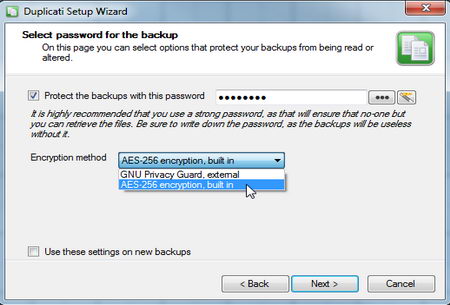
A wizard will guide you through the process of creating your first backup job, you can choose one of the folder suggestions given (My Documents, My Music, etc) or select custom folders you would like backed up, the screen will show how much free hard disk space you need for the job, the data is all encrypted using AES256 by default or you can use Gnu Privacy Guard with PGP keys to encrypt it,  everything is digitally signed so that nobody can tamper with the data.

Duplicati data backup with encryption

Duplicati data backup with encryption

 Duplicati main features

  • Data encrypted and digitally signed
  • Built-in support for backing up data on cloud services
  • Support for differential backups
  • Real time backup error notifications

Restoring a backup job is as easy as choosing “View contents” from the backup logs and launch the wizard, you will be asked if you want to schedule, edit, remove or restore files, after choosing restore files you are then offered different dates and the option to change the default location where to save the content.

Duplicati doesn’t have a fancy interface like other free backup software but it is easy to use and the encryption and SSH options make this program one of the best for backing up sensitive data. If you are worried that the files you store on the cloud can be leaked, subpoenaed, etc, or worried about your cloud storage provider so called encryption having a backdoor (like Dropbox), use Duplicati, do not give the authority to others to look after something as important as your encryption keys, data leakage liability will be yours not theirs, this backup software encryption has no backdoor, you can even use your own PGP encryption keys (created using GNU Privacy Guard) for peace of mind.

Visit Duplicati homepage

4 Comments

Top 5 programs for full disk encryption

Why use full disk encryption

If you encrypt your whole hard drive including your operating system you will not have to worry about wiping data, clearing the Internet browser cache, deleting temporary files and encrypting individual files, all you will have to worry about is choosing a strong passphrase that can not be broken using a brute force attack (trying dictionary words).

The only way to access a fully encrypted operating system is by getting access to the computer while it is switched on (decrytped), you will save lots of time if you decide to encrypt your full operating system, it is not difficult and there is free software for that. Windows Vista and 7 come with BitLocker Drive Encryption for full disk encryption but only the more expensive business high end editions do and it has been designed for businesses with few home user features.

Full disk encryption software without backdoor

Truecrypt (Free): It’s wizard driven menu will guide you through the whole encryption process, there are many algorithm choices, if you do not understand what they mean leave all of the default choices on, they are secure enough for everyone. Truecrypt can encrypt external devices, create virtual encrypted drives and create a hidden encrypted operating system, to be used if you are forced to give up the password.

You will find it easy to find support for Truecrypt at computer security forums and Usenet groups as it is one of the most used full disk encryption programs.

Truecrypt encryption algorithm

Truecrypt encryption algorithm

DiskCryptor (Free): Open source encryption software, it can encrypt partitions that have already data on them, it supports AES, Twofish and Serpent encryption algorithms, allows you to encrypt USB flash drives and external hard disks with automatic mounting, support for key files, option to place the boot loader on an external device.

DiskCryptor full disk encryption

DiskCryptor full disk encryption

ZoneAlarm Datalock (Under $50):  There is no backdoor in this encryption software but it is possible for ZoneAlarm to reset your password if you choose to upload a security file to their site during installation, you can opt out to make sure they can never be forced to give it out to anyone. Datalock uses 256-bit AES and it supports Trusted Module Platform hardware encryption, when a computer has a TMP chip the encryption keys and digital certificates can be stored within it for protection from external attacks.

ZoneAlarm Datalock encryption

ZoneAlarm Datalock encryption

DriveCrypt Plus Pack: (Over $100): Whole operating system encryption with AES256-bit, no backdoor, it can hide an undetectable operating system in the hard drive free space, this is useful if someone forces you give up your password, they would not be able to prove a second operating system exists, it can be used in conjunction with USB tokens for preboot authentication, login preboot screen can be changed, you can create your own.

DriveCrypt Plus Pack encryption

DriveCrypt Plus Pack encryption

SecureDoc WinMagic (Over $100): Encryption of laptops, USB devices and desktop computers using AES 256 bit, certified FIPS 140-2 Level 2, it supports multifactor authentication at preboot level, no backdoor but password recovery is possible if you set it up, available in various languages, extended audit logging make SecureDoc a good option for businesses.

SecureDoc WinMagic full disk encryption

SecureDoc WinMagic full disk encryption

Full disk encryption performance

I have been using full disk encryption for over 5 years, I have used DiskCryptor, Truecrypt and DriveCrypt Plus Pack, in all cases there has been no computer slowdown while I was using full disk encryption, even using it on a low performance netbook with an Intel Atom CPU showed no noticeable performance issue.

If you are a home user you do not need to worry about full disk encryption slowing down your computer activities, the software normally needs very low resources to run on.

2 Comments